

DSK releases DrumZ BeatVoiZe

Related: , , , , , // Posted in news on Feb 22, 2008
DSK DrumZ BeatVoiZe

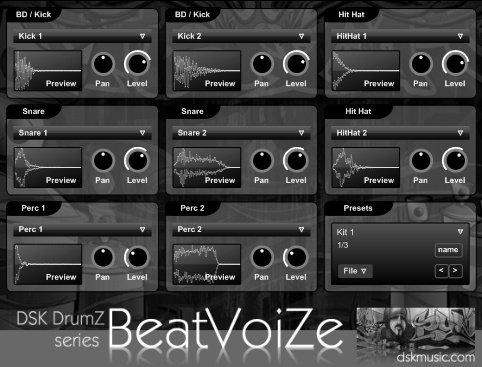
DSK has released DrumZ BeatVoicZe, a freeware drum module plug-in featuring Human Beat box sounds.

DrumZ BeatVoiZe features

  • 8 sound slots (C3 to C4 white keys).
  • Level and pan control.
  • 8 stereo outs.
  • 26 samples.
  • 3 kits.
  • Midi automation.
  • Preset selector.

DSK DrumZ BeatVoiZe is available for download below (Win PC, 6.5MB).

DKS DrumZ BeatVoiZe Downloads: 41877 times

Visit the DSK or plug-ins page for more free downloads.

Related posts

Comments

There are 17 comments on this post.
Join the discussion and share your thoughts below.

Comments

  1. verona
    commented on Mar 02, 2008

    Hi, thanks your plug in. I tried DrumZ BeatvoicZe and unfortunetly it didn’t work ! no sounds :-(
    Did I forget something to do? Or it is a bug you know?
    Thanks

  2. ronnie
    commented on Mar 02, 2008

    Hi Verona,
    I don’t know what host you are using, but because this plug-in has multiple outputs you might need to route the outputs to channel 1+2 in your host.

  3. drbuster
    commented on Mar 02, 2008

    Hi,
    Like Verona I was tried the Drumz beat voice but no sounds, so I try to route the outputs to channel 1 and 2 in the host (Live 6) but it’s the same thing, I try with differents outputs configurations with no success.
    Thanks.

  4. verona
    commented on Mar 03, 2008

    Thanks Ronnie,

    My host is tracktion 2. I will try to route the output but I saw some people tried that with no results. any way I’ll tell you if your tip works.
    Thanks

  5. Brian
    commented on Apr 25, 2008

    I also cannot get it to work; I am using Ableton live 7

  6. Tibo
    commented on Jun 05, 2008

    I got it with Ableton Live, but altough it works, I can’t get any sound out of it… Could someone send us his presets to get it to work? Would we great, cause it really looks cool.

  7. ronnie
    commented on Jun 06, 2008

    Tibo, have you tried routing the output to channels 1 and 2?

  8. Tibo
    commented on Jun 06, 2008

    I just can choose between “Ext out”, (“Configure”), “Master”, “1-Audio”, “Sends only”. Channel 1 and 2 are Midi channels? I’ve just got my first VST, so I don’t know at all what to do…

    Thanks for havin replied, Ronnie :)

  9. Tibo
    commented on Jun 06, 2008

    I think I’ve found: I use a DX driver, and it seems to work only with ASIO ones… I’m sure you already know that. Is it possible to get something like an emulator which would pretend to be ASIO, and to get it to work anyway?

  10. ronnie
    commented on Jun 07, 2008

    Not sure if that’d be the solution but you could try the ASIO4ALL drivers I guess.

    http://www.asio4all.com/

  11. Tibo
    commented on Jun 08, 2008

    I’m trying this actually, put one more time I’m not sure about the settings…

  12. Tibo
    commented on Jun 09, 2008

    I managed to set ableton on ASIO4ALL, however I would appreciate if someone could give me the settings, I heard about a host track…

  13. Tibo
    commented on Jun 09, 2008

    I reply to myself, just to say the Oranze works perfectly… Where is the difference???

  14. ronnie
    commented on Jun 09, 2008

    Oranze isn’t multi-out.

    I’m afraid I don’t have Live so I can’t tell you how to route the outputs so that Live will play the sounds of the DrumZ plug-ins…

  15. Tibo
    commented on Jun 13, 2008

    Ok, if someone have the solution, let me know…

  16. Jon
    commented on Jul 08, 2008

    Hi Tibo

    Put the vst on a midi track.

    Go to the “view” menu, select “in/out”. Create an audio track.

    On the audio track you should see “audio from”, in the drop down menu select the midi track that the vst is on.

    Just below that there should be another drop down menu. Open it and select from the outputs of the vst that will appear there, (something like “L1/R1-DSK…”

    Create audio tracks to use each output as needed.

    Hope that helped

    Cheers!

  17. TC
    commented on Sep 07, 2008

    In Tracktion 2, add the DSK DrumZ as a Filter. Then add a new filter AFTER that one, choosing Patch Bay Filter. Then open the Patch Bay and click and drag from L1 to L (this creates an arrow going from left to right), then click and drag from R1 to R. Then click and drag from L2 to L & R2 to R. Repeat this for all 8 L & R on the left hand side of the filter. This turns on all the drums (you can now hear them when you click on the Preview waveform for each one). They do not necessarily match the GM notes (I had to edit my midi file to get it to play the drums I wanted when I wanted). The sounds are pretty good, although some of the kits were just too quiet, for some reason.

Leave a comment

Comment notes:
Please keep comments relevant. Inappropriate or offensive comments may be edited and/or deleted. Email addresses are never displayed. Line breaks and paragraphs are automatically converted - no need to use <p> or <br/>.

* Your email address will not be published.